Quickstart
1. Hardware Assembly
The printer arrives in a nicely packaged cardboard box partly pre-assembled and requires some assembly to be performed.
Follow the official assembly video by creality below till 6:28
2. Professional Firmware Quick Setup
For a more comprehensive setup guide see:
Now we need to do some software setup. The printer has a click-wheel below the LCD Screen to control the UI. Turning the knob clockwise will move the UI Forward and turning it counter-clockwise will move the UI Backwards. The wheel can pre pressed to register clicks in the UI.
3. Home the printer
Homing the printer will ensure that the printer knows the coreect position of the print head. For X and Y axes, the printer uses a limit switch. For the Z axis, it uses a CR-Touch Probe/Sensor. Follow this video to home the printer.
4. Tram the bed
Next, we need to tram the bed. Before tramming remember to clean the bed with a microfiber cloth. Bed Tramming makes sure that the print bed is parallel to the printer’s X and Y axes. Follow the video below to tram your bed.
5. Build a Bed Mesh
Next we need to build a bed mesh. Even though our corners are trammed, the print bed is rarely completely flat. So the CR Touch Sensor can probe the bed at 36 different points and build a mesh of the inconsistencies in the print bed’s surface.
Goto Prepare > Auto build Mesh to start mesh leveling process. This will
heat up the bed to 50°C an then probe 36 points on the bed. You can see the
results on the screen. Press Continue to save the mesh. This mesh will be
loaded automatically every time the printer boots.
6. Set the Z-Offset
This is the most important step while setting up the printer. The printer determines the Z=zero position using the CR-Touch Probe but the actual nozzle height is different from the Probe’s height. See the image below to understand the difference.
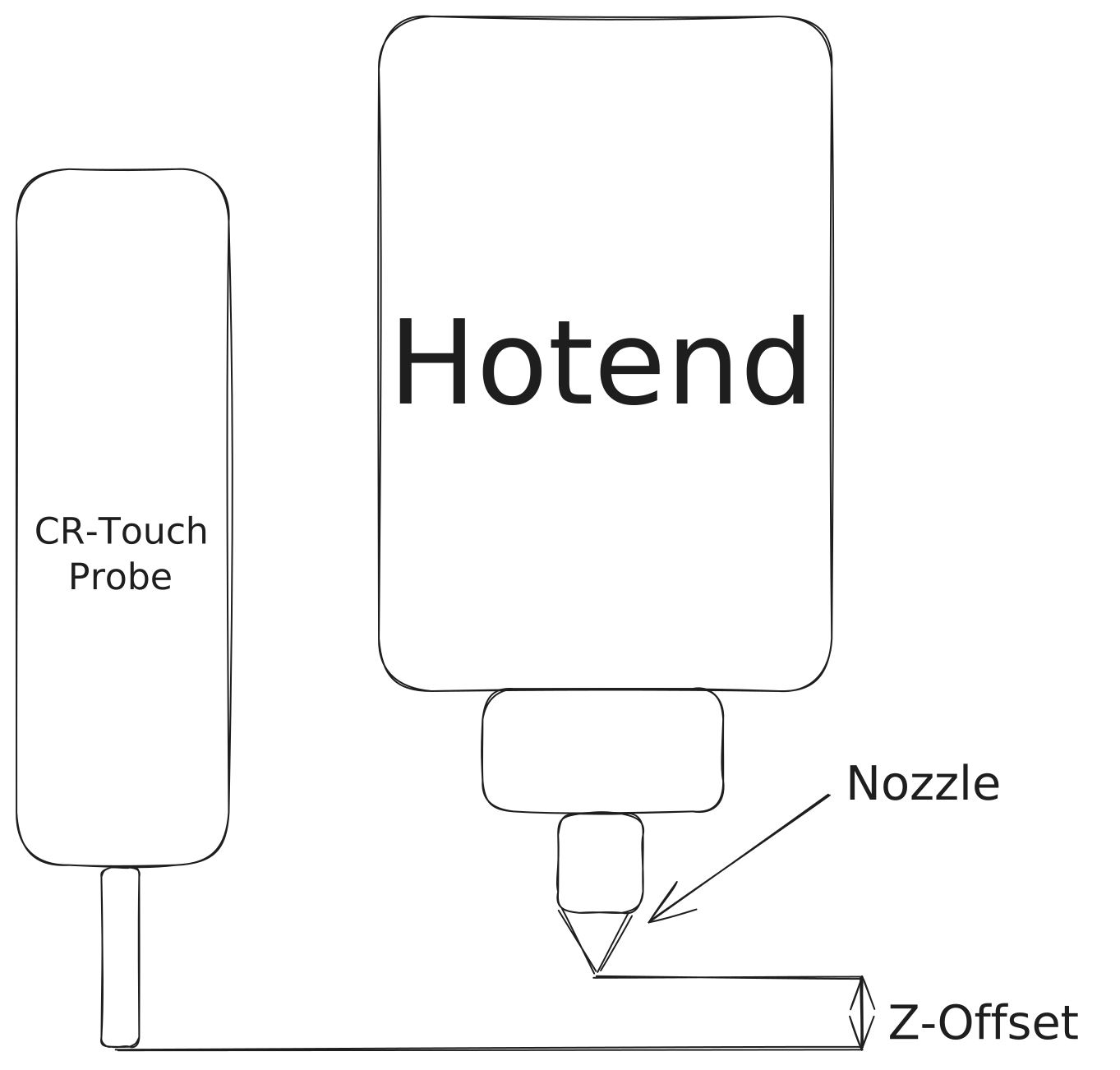
- Goto
Prepare->Z Probe Wizard->Auto Home - Then click
Move Z to Home - The nozzle will now move to Home Position
(0,0) - Put a A4 Sheet Paper below the nozzle and adjust the
Probe Z Offsetusing the Click Wheel until the nozzle just touches the paper. - Turning the wheel clockwise will move the nozzle up and turning it anti-clockwise will lower it.
- You should be able to move to paper between the nozzle and the bed but with some resistance.
- Ensure that the Z Offset is low enough to experience some resistance but high enough to allow the paper to be inserted between the bed and the nozzle from outside.
7. Load Filament
We need to load the filament to start printing!
- Goto
Prepare>Filament Management>Load Filament - The hotend will heat to 180°C
- It will then give 2 options
LoadandContinue - Now cut the filament at an angle, hold the extruder spring and push it into the extruder (See the video below) until you feel resistance (You will feel it after you push around 30cm of filament)
- Once you feel some resistance, click
Purge, this will push the filament into hotend and you will see it coming out of the nozzle. - Clean the oozed out filament using a pair of tweezers.
- The video below demostrates the process.
8. Print your first model!
Time to print our first model, Finally!
- Clean the bed
- Goto
Mediaand you will see a file namedIETE, if you don’t, download it from here and copy it to the SD Card (A card reader is included in the box). - Click on the IETE file and then click
Print - Watch the print start, Printer will first heat up, then create a bed mesh again and then start printing.
Next, you might wish to print your own models and you will need a slicer software for that. Head over to the next section which will help you get started with the slicer.